
Welcome to Echo Bundle App
This app allows merchants to create product bundles and automatically apply discounts when customers purchase bundled products together. No manual discount codes needed!
1. Getting Started
Install the App
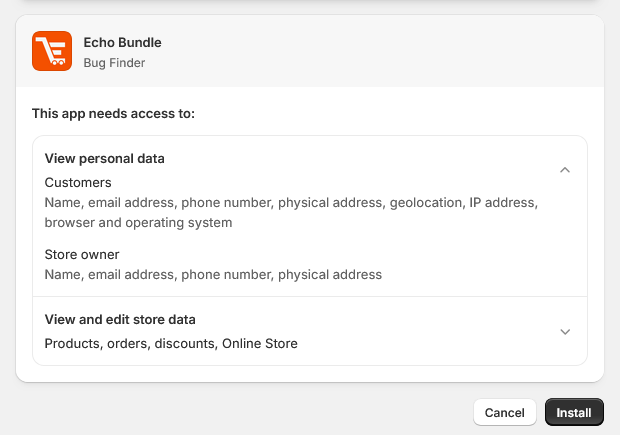
- Install the app using the provided install link.
- Approve the required permissions.
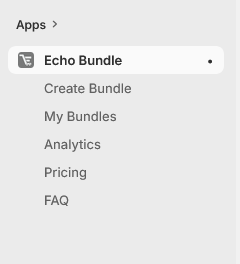
- After installation, the app will appear inside your Shopify Admin → Apps section.
Open the App Dashboard
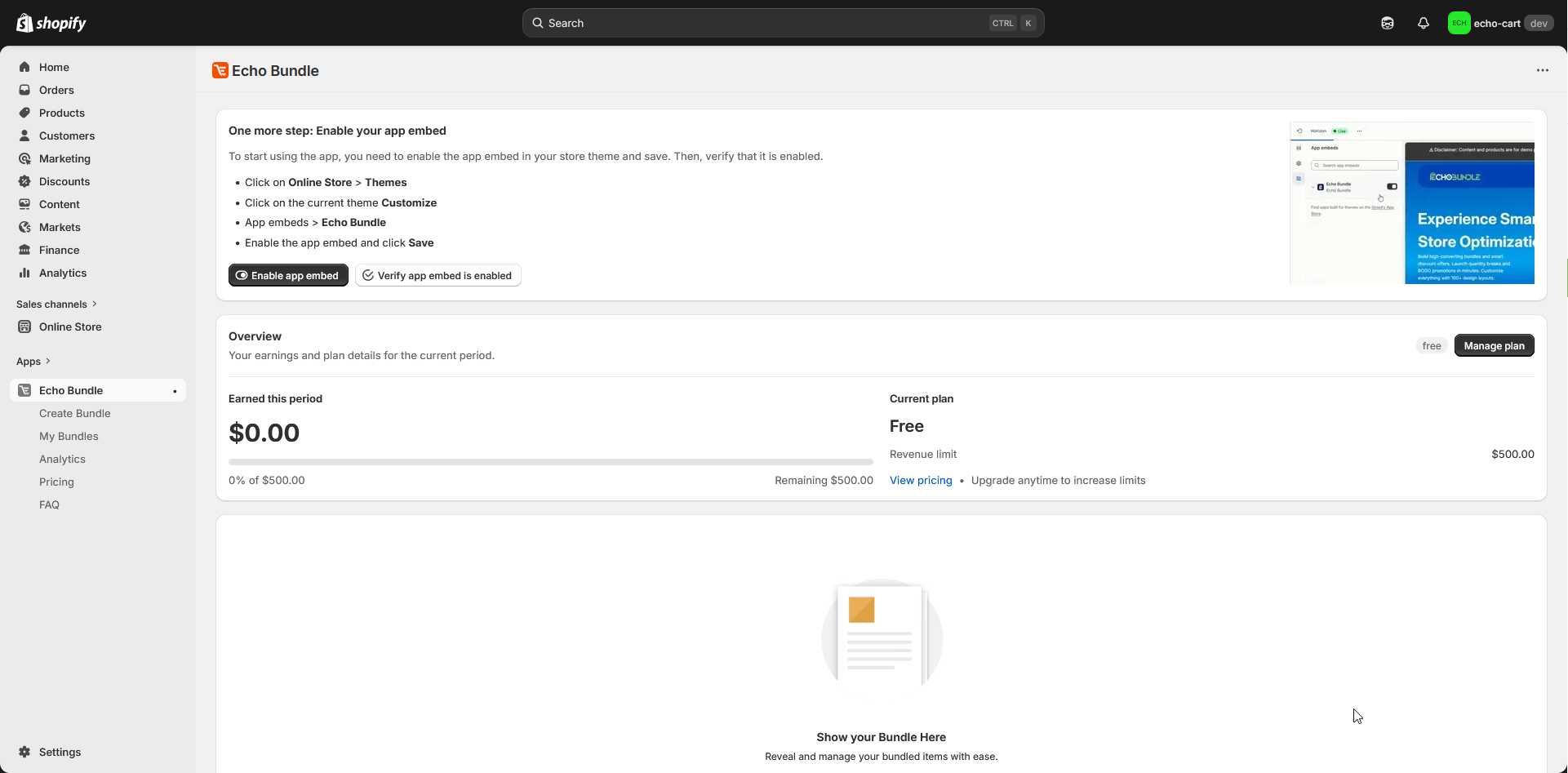
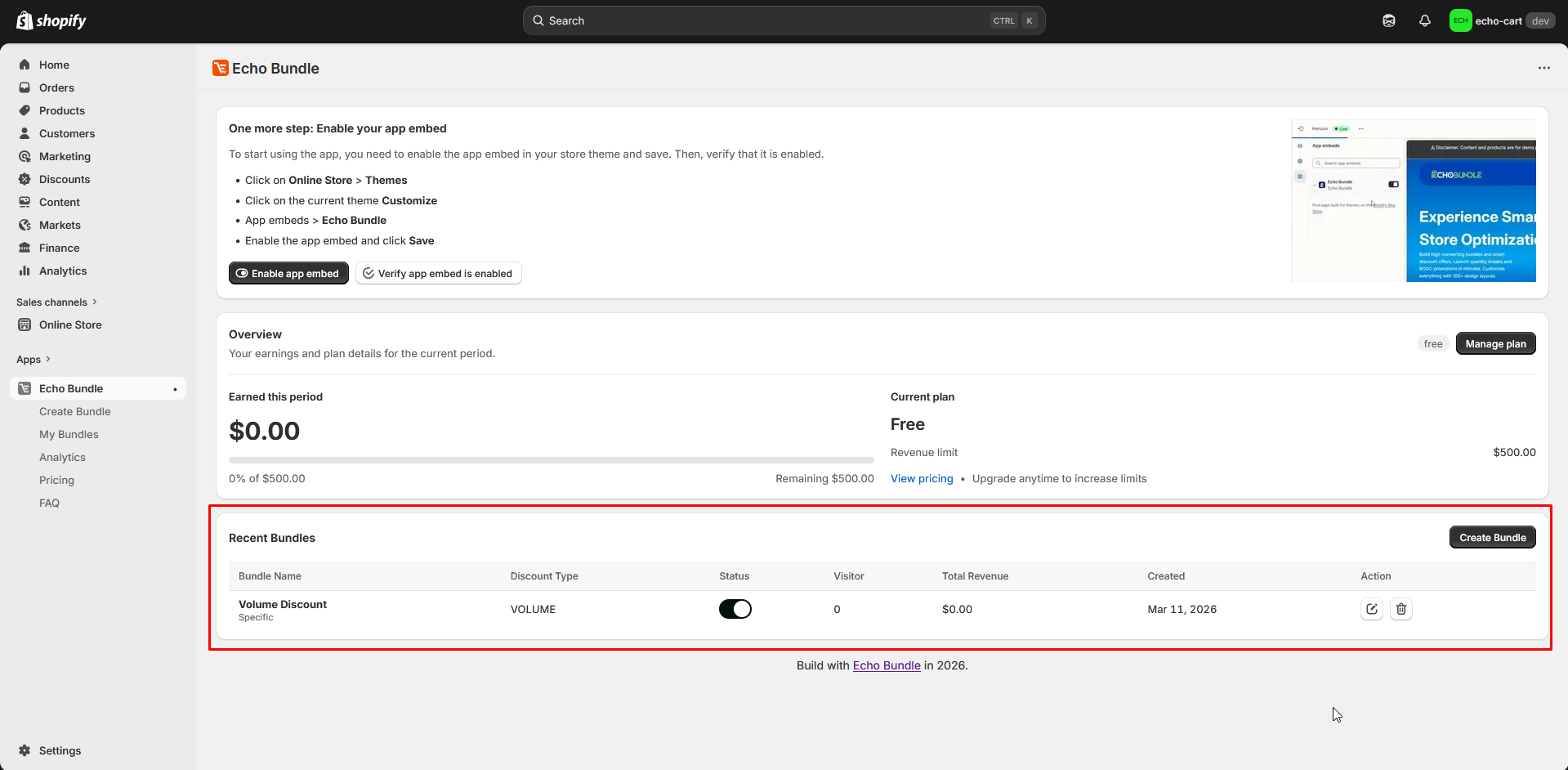
- Go to Shopify Admin > Click Apps > Open Echo Bundle App.
- This opens the main dashboard where you can create and manage bundles.
4. Storefront Integration
Theme App Extension Setup
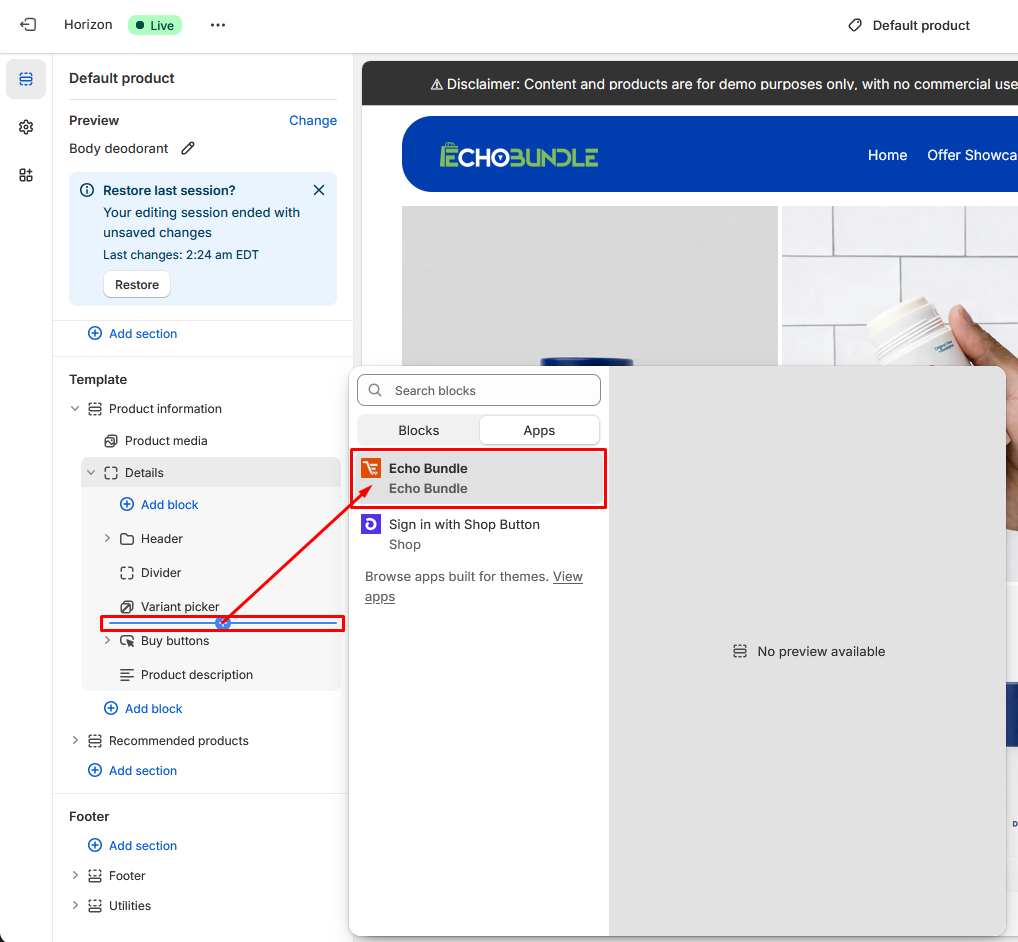
If the app uses a Theme App Extension, follow these steps:
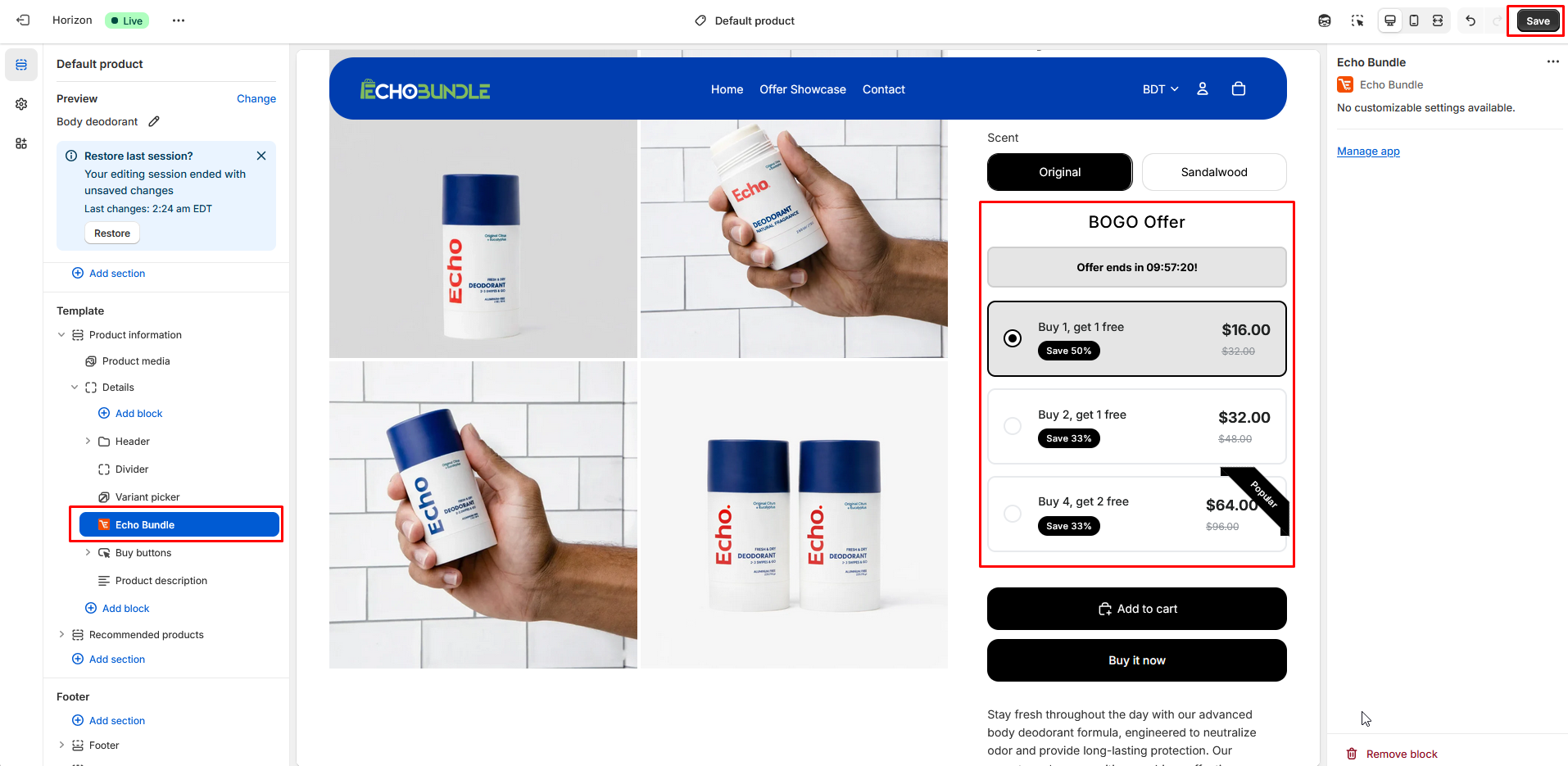
- Go to Online Store → Themes.
- Click Customize on your current theme.
- Add the Echo Bundle App Block to the desired section (e.g., Product Page).
- Save the theme.
2. Create & Configure
Initiate Bundle
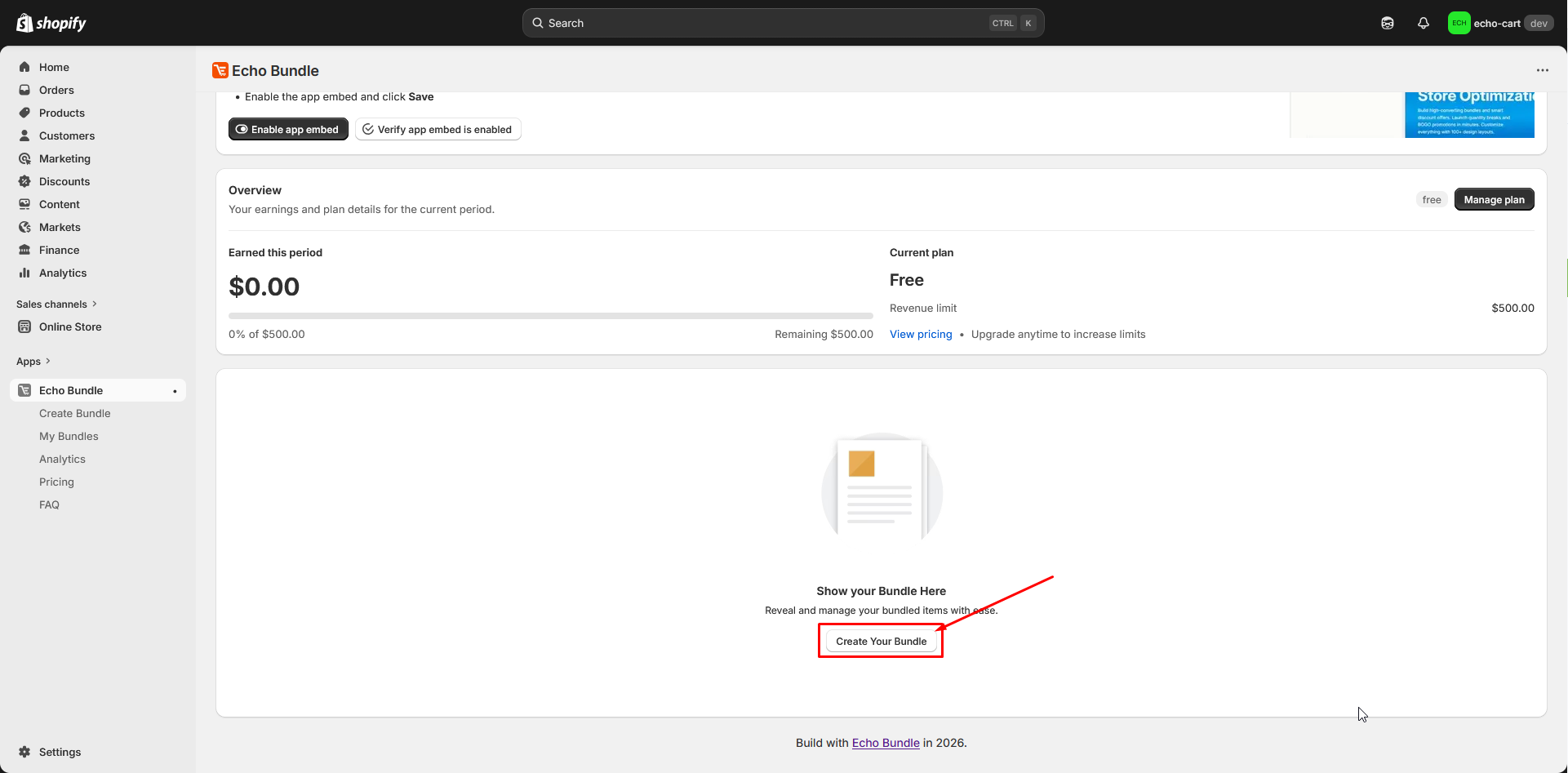
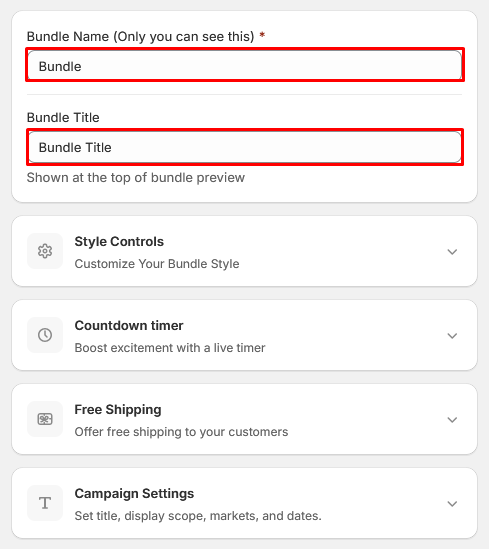
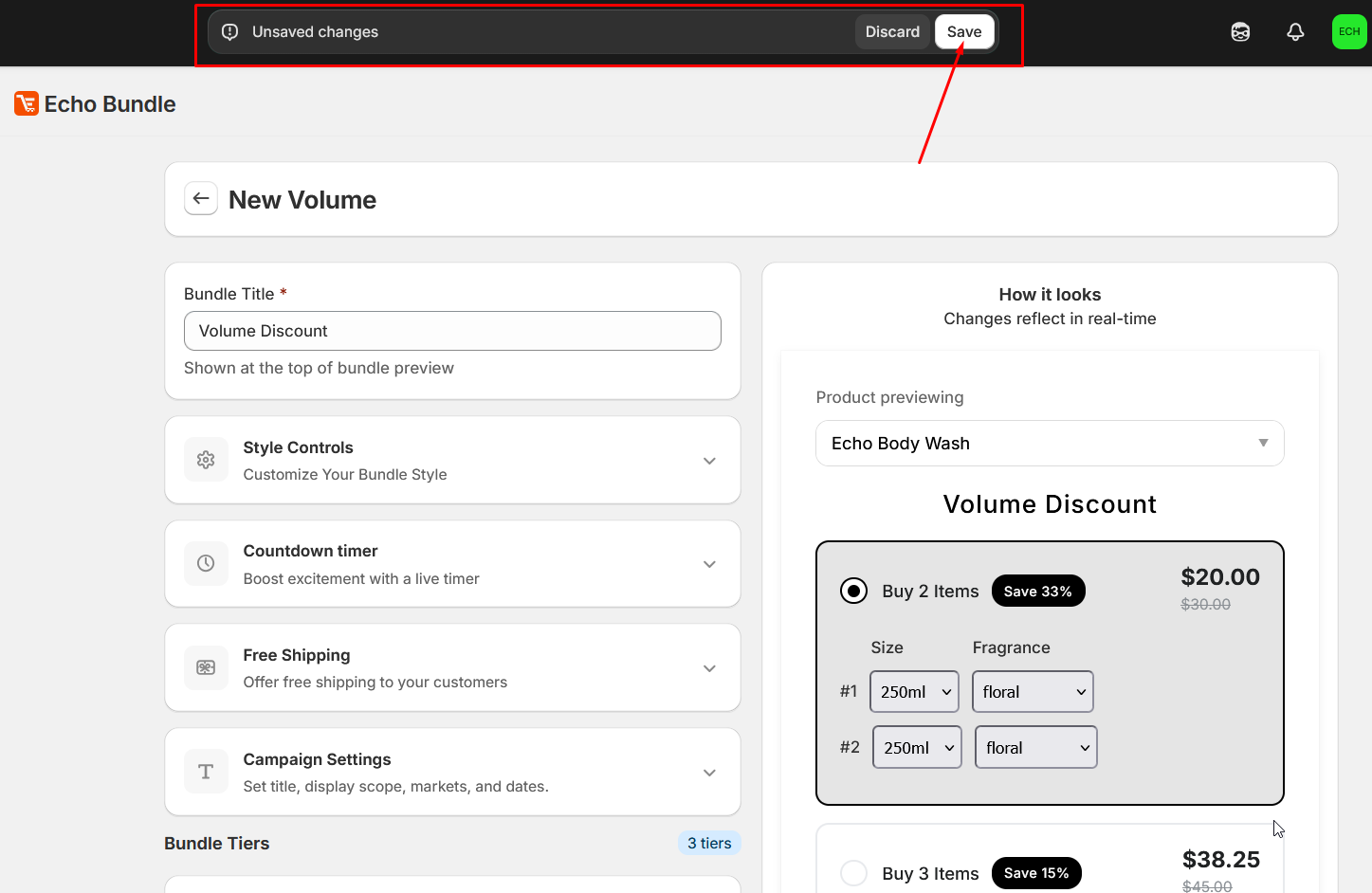
Click the Create Bundle button. Enter a unique bundle name and choose how the bundle should function.
Select Products
You can add products to the bundle in two ways:
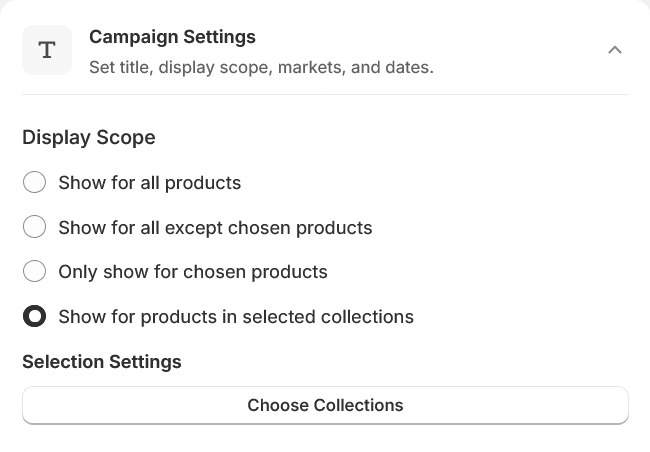
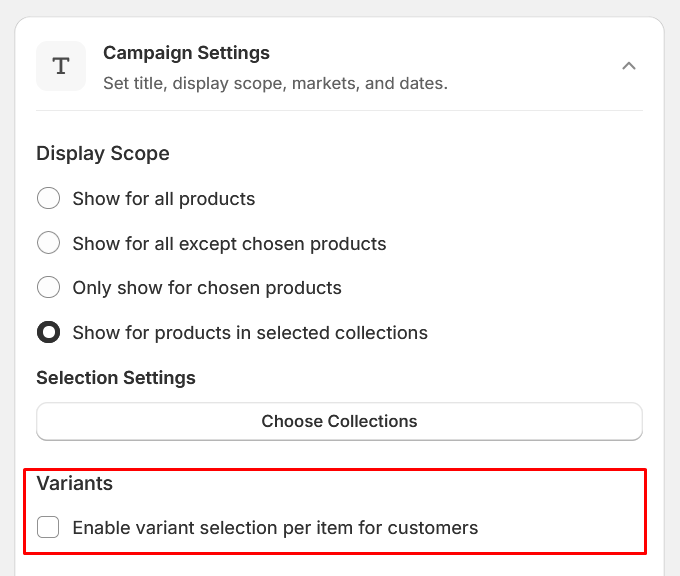
All Products
Applies to every product in the store.
Exclude Products
Applies to all products except the selected ones.
Collections
Applies only to products in selected collections.
Manual Products
Applies only to individually selected products.
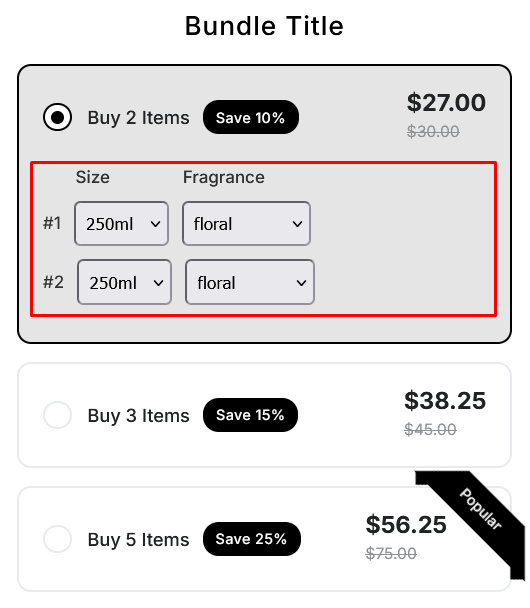
Variant Selection
If a product contains multiple variants (size, color, etc.), customers will be able to choose their preferred variant before adding the bundle to the cart. Products without variants are added directly.
3. Applying Discounts
Configure Discount Rules
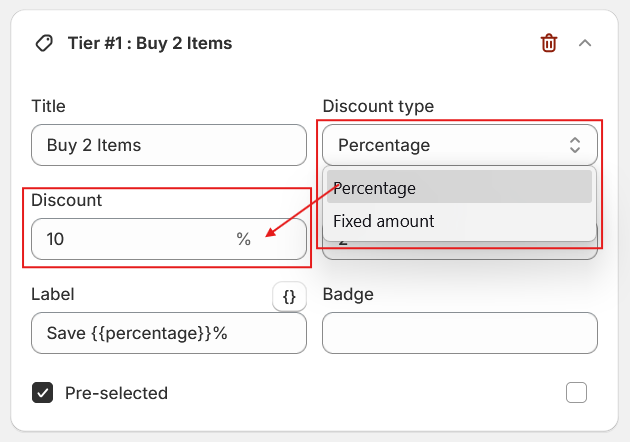
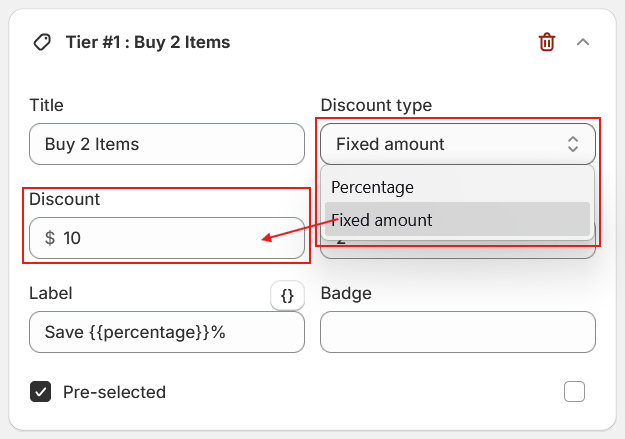
Choose how the discount should be applied:
- Percentage Discount: E.g., Buy 2 products together and get 10% OFF.
- Fixed Amount Discount: E.g., Save $10 when buying the full bundle.
Save the Bundle
After configuring, click Save Bundle. The bundle will become active immediately.
5. Create an Upsell
Initiate Upsell
The Upsell feature allows you to offer an additional product at a discounted price alongside the main product. This helps encourage customers to purchase complementary items and increase the Average Order Value (AOV).
Upsell Configuration
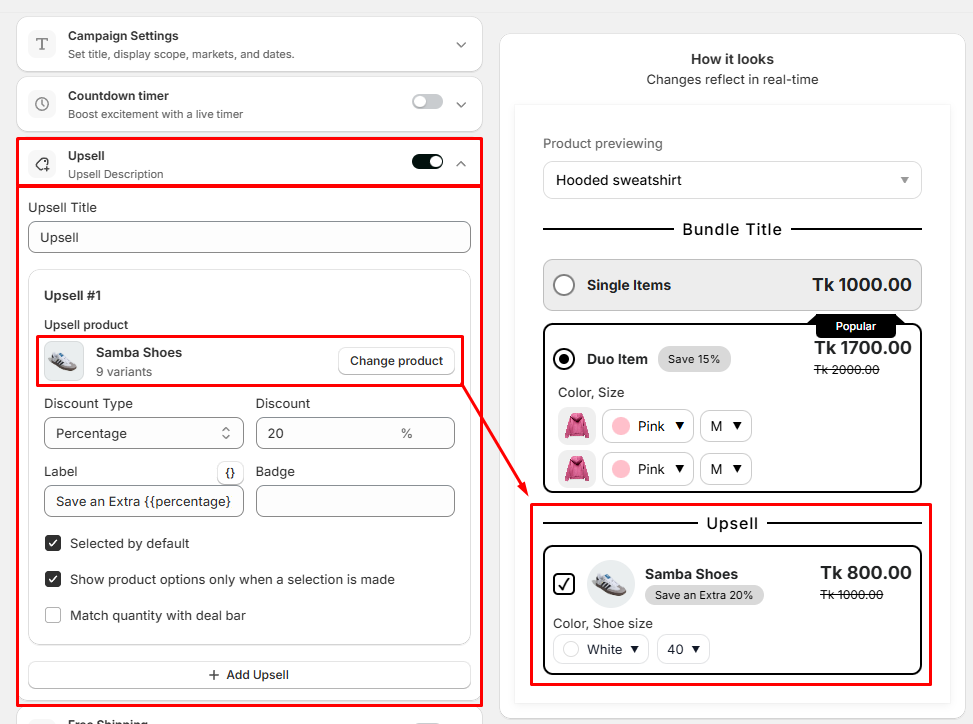
Configure an Upsell offer to encourage customers to purchase additional products at a discounted price, helping increase the Average Order Value (AOV).
- Turn the Upsell toggle ON to enable the feature. The configuration panel will expand automatically.
- Upsell Title: Enter the title that will be displayed above the upsell offer on the customer-facing widget.
- Select an Upsell Product: Choose the product you want to offer as an upsell.
- Discount Type: Select how the discount should be applied (e.g., Percentage or Fixed Amount).
- Discount: Specify the discount value for the selected upsell product.
- Label: Enter promotional text that appears below the product name to highlight the offer (e.g., Save an Extra 20%).
- Badge (Optional): Add a short badge, such as Best Deal or Limited Offer, to make the offer more noticeable.
- Selected by Default: Enable this option to have the upsell product pre-selected for customers.
- Show Product Options Only When a Selection Is Made: Display product options, such as Color and Size, only after the customer selects the upsell.
- Match Quantity with Deal Bar: Automatically synchronize the upsell product quantity with the selected bundle tier quantity.
- Add Multiple Upsells: Click + Add Upsell to include additional upsell offers within the same campaign.
Need more help?
Our support team is available 24/7 to assist with your setup.
Email: support@echozer.com